Free 3GP Video Converter
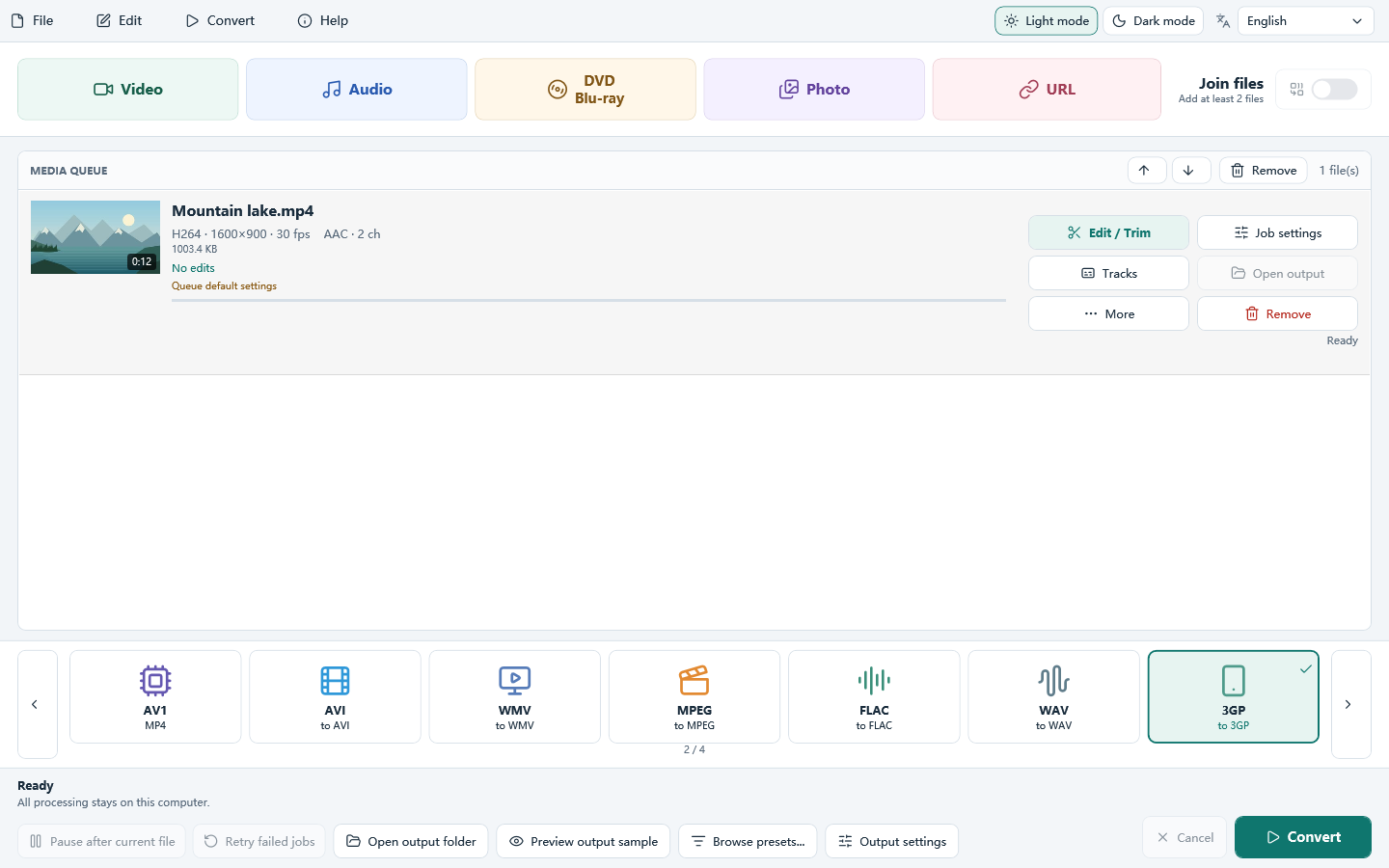
Convert MP4, AVI and other local videos to 3GP for a compatible phone or player. Download All Free Video Converter for Windows 10/11 (64-bit), choose 3GP, and convert your files on your PC without uploading them.
This is Windows PC software. Open this page on your computer to download and install it.
- Cost
- Free to download and use
- Runs on
- Windows 10/11 (64-bit)
- Setup file
- 77.8 MB
- Version
- 8.1.0
How to convert a video to 3GP in 3 steps
Choose the source, check the output settings, and test the result.
Have a YouTube link instead of a video file? Use the YouTube to 3GP guide and All Free YouTube Downloader for a readable link you are allowed to save. The steps below start with a video already saved on your PC.
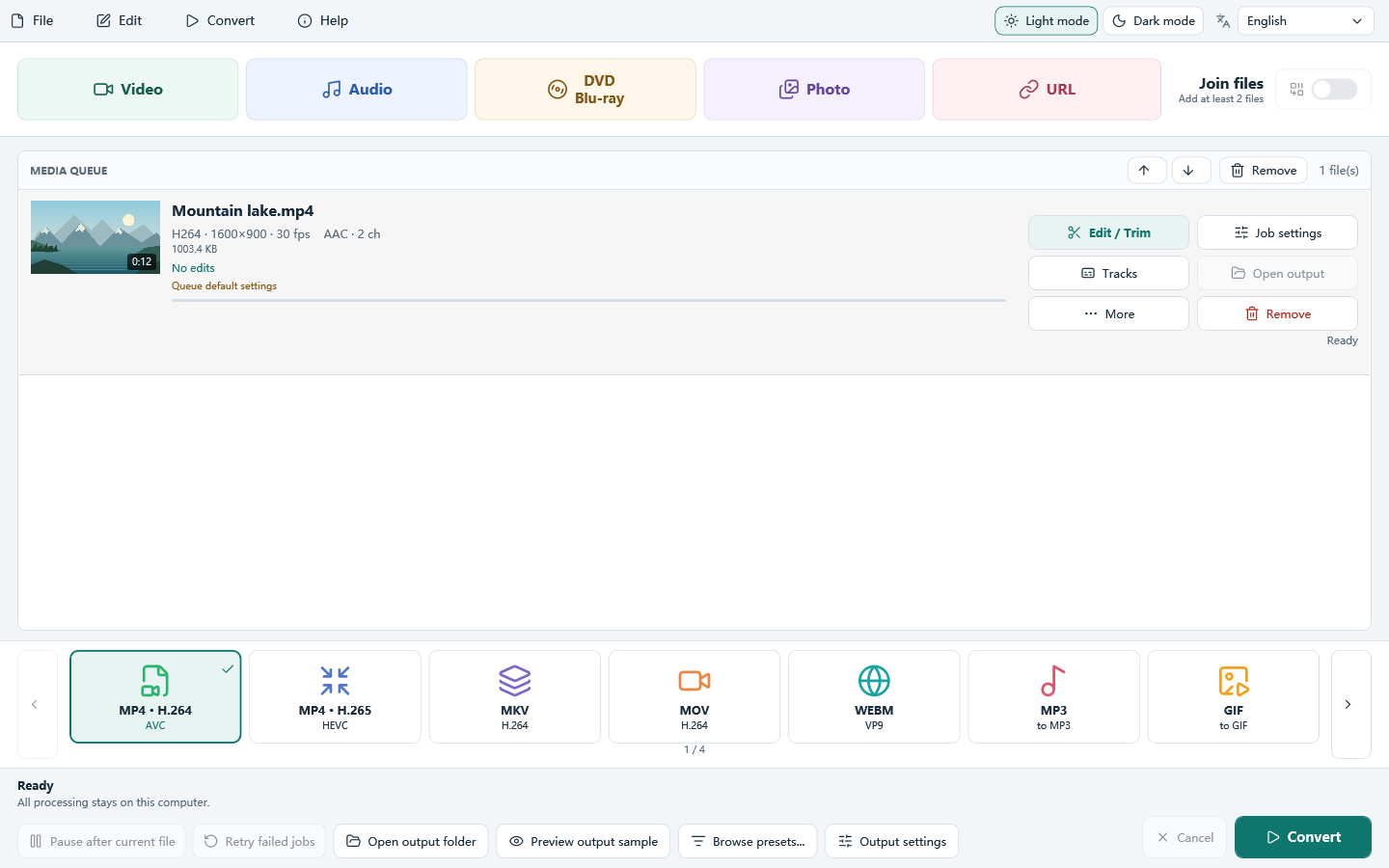
Add your video files
Add a local MP4, AVI or other readable video to All Free Video Converter. Add several files or drag them onto the window when you have a batch.
Choose 3GP for a compatible device
Select 3GP on the main window. This output uses H.264 video and AAC audio. Check that your phone or player supports those codecs and your chosen picture size.
Check size and convert
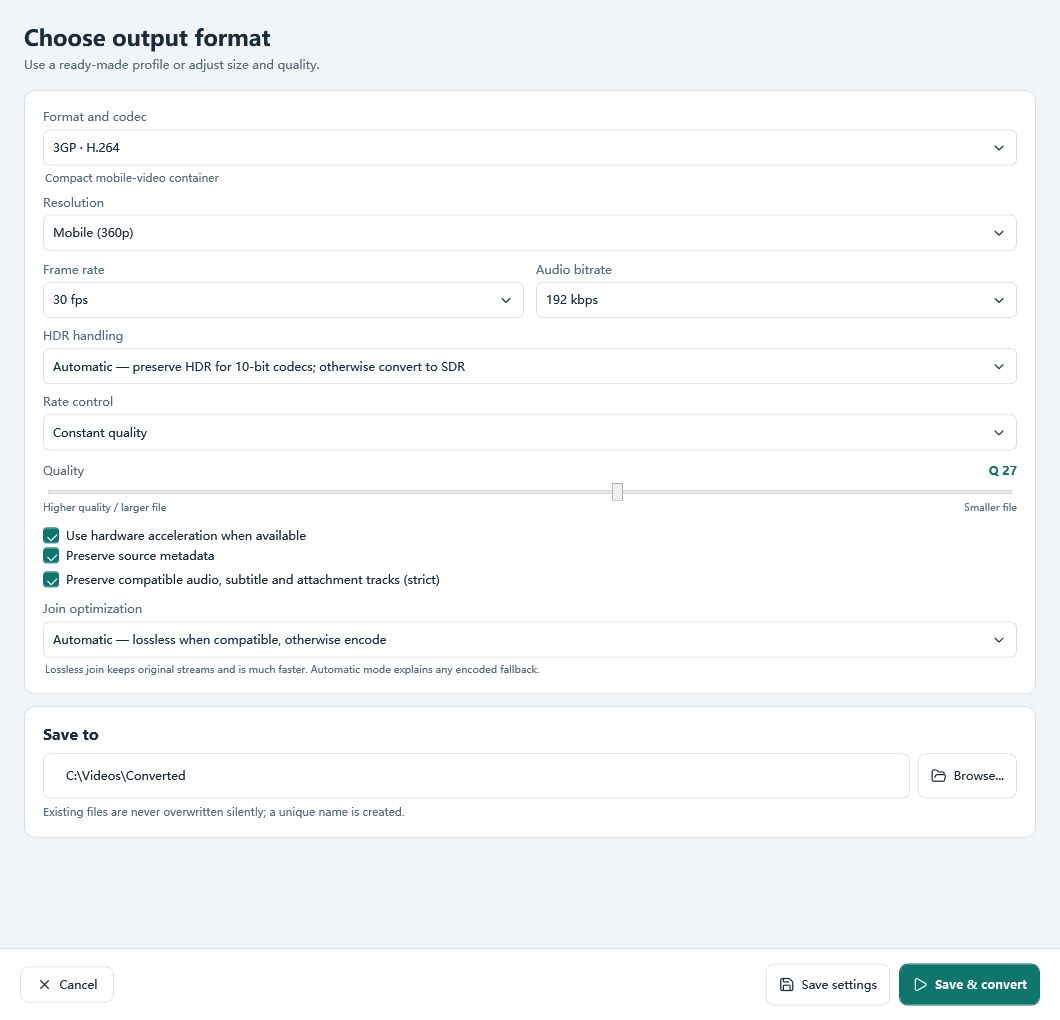
Choose quality, average bitrate or target size, then check the output folder and click Convert. Test a short clip on your device before applying the settings to a full batch.
What you can do with Free 3GP Video Converter
Video to 3GP
Choose the 3GP profile. It uses H.264 video and AAC audio.
Batch queue
Add many files, set options per file and convert the queue in order.
Quality and size
Use constant quality, an average bitrate or a target file size.
Trim and crop
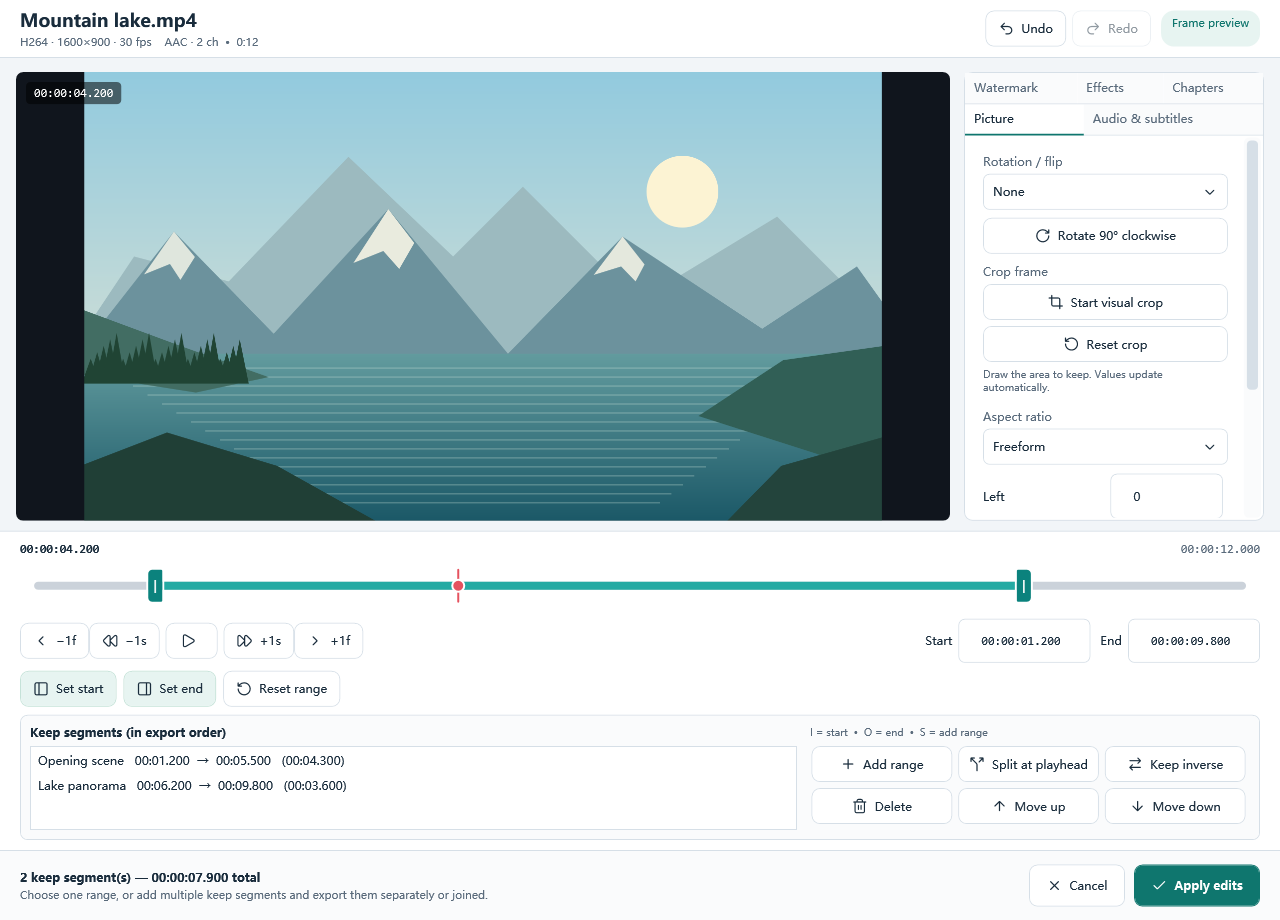
Keep a range or several segments, then crop, rotate or flip before you convert.
GPU when available
NVIDIA, Intel and AMD encoders are used when your PC has that encoder.
No added watermark
The program does not stamp its own watermark onto the output.
Choose 3GP settings for your phone or player
Choose settings for your device
A .3gp extension alone does not guarantee playback. Check the device’s supported video codec, audio codec, resolution and frame rate. This program’s 3GP output uses H.264 video and AAC audio; some older phones require different codecs.
Control the file size
Use a target file size when storage or sharing limits matter, or an average bitrate when you need a predictable data rate. A lower bitrate saves space but can soften details. Keep a short test clip before converting a long video.
Keep the right resolution
Match the output resolution to the screen and player that will use the file. Increasing it beyond the source does not restore detail. A smaller picture can help reduce file size, but must still meet your device’s requirements.
Before you convert the whole video
- The phone will not play the result? Check its codec requirements as well as the .3gp extension. Test the result on that device before transferring a full batch.
- The result is too large? Use a lower average bitrate or a smaller target size. Shortening the clip also reduces the amount of video to store.
- The picture looks stretched? Keep the source aspect ratio, or crop deliberately. Changing width and height independently can distort faces and objects.
Related guides
Download All Free Video Converter
Convert MP4, AVI and other videos to 3GP.
Frequently asked questions
Is Free 3GP Video Converter free?
Yes. Download All Free Video Converter free of charge. Free 3GP Video Converter describes this conversion task within that program.
Does it run on Windows 11 and Windows 10?
Yes. It is a 64-bit desktop program for Windows 11 and Windows 10. It does not run on Mac, Android or iPhone.
Do I have to upload my files?
No. Your local files are converted on your Windows PC without uploading them to a conversion website.
Is there an online converter on this page?
No. This page downloads Windows desktop software. Use a Windows 10/11 (64-bit) computer to install and run it.
Can I convert MP4 or AVI to 3GP?
Yes. Add a readable local MP4 or AVI file, choose 3GP on the main window, and click Convert. You can also convert a readable 3GP file to MP4 by choosing MP4 instead.
Will the 3GP output work on every phone?
No. This program uses H.264 video and AAC audio for 3GP. Some older phones require other codecs or limited resolutions and frame rates. Check the device’s requirements and test a short clip.
How do I reduce the 3GP file size?
Choose a lower average bitrate or a smaller target size. You can also keep only the part of the video you need. Check the result before applying the same settings to a batch.